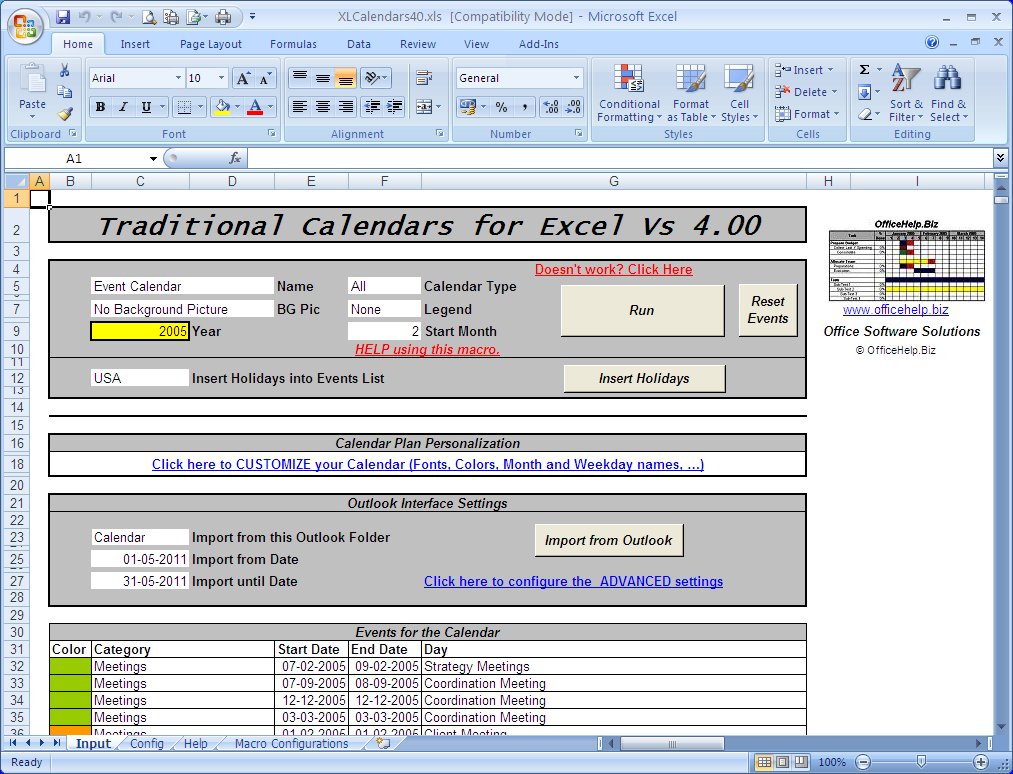
Tired of marking events and dates with a color pen on a wall calendar?
If you have Microsoft Excel, you can now generate
YOUR OWN wall, desk or email calendars, just by entering the
intended YEAR and event details, like it's name, start and
end date. Use different colors for each event or category.
Select background and font colors for your calendar.
Automatically insert event's legend. Use your own
background image.
Easy to use. if you know Excel, you know this!
Really easy to use, just fill in the values in the Input
Cells and press the "Run" button to create YOUR new
Calendar.
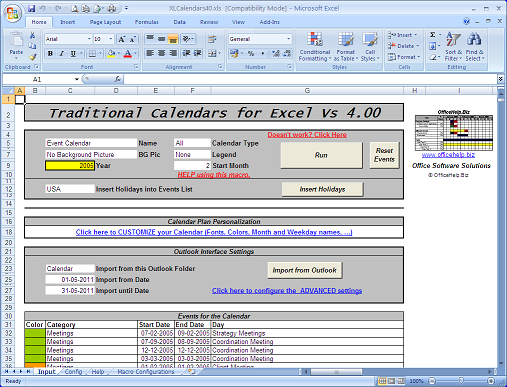
PIC. 1 - Screen Shot from the Microsoft Excel Macro File (Click to Enlarge)
EXCEL ONLY - No
installation or setup required. Just open in Excel and run!
Academic
/ Fiscal Calendars: Select the Start Month
for any 12 Month Calendar. Create calendars spanning
multiple years (Example: August 2007 to July 2008).
 4-5-4 Fiscal Calendar format supported.
Six Types of Calendars from the same events list!
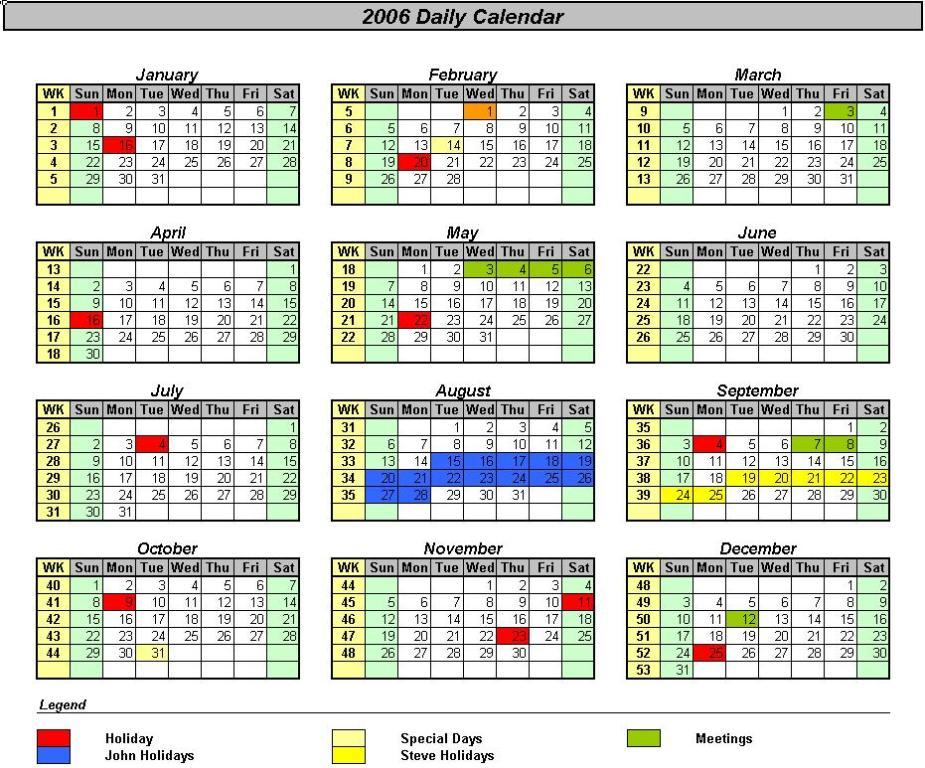
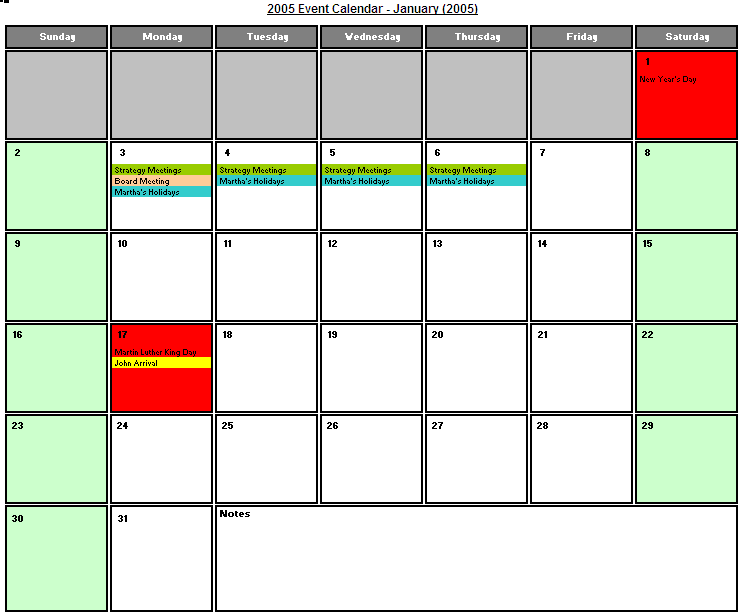
The Microsoft Excel macro will generate a new workbook with the
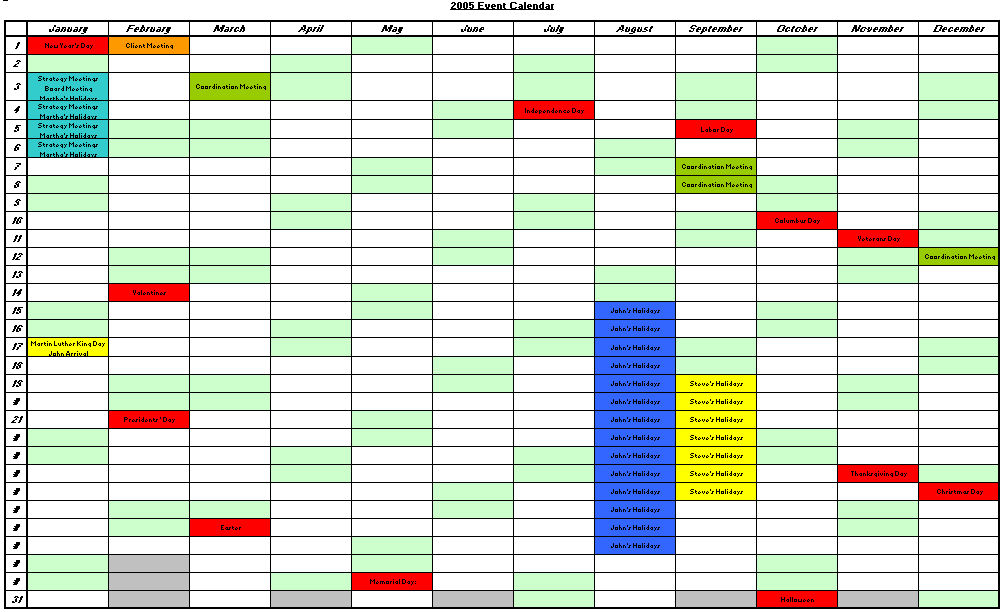
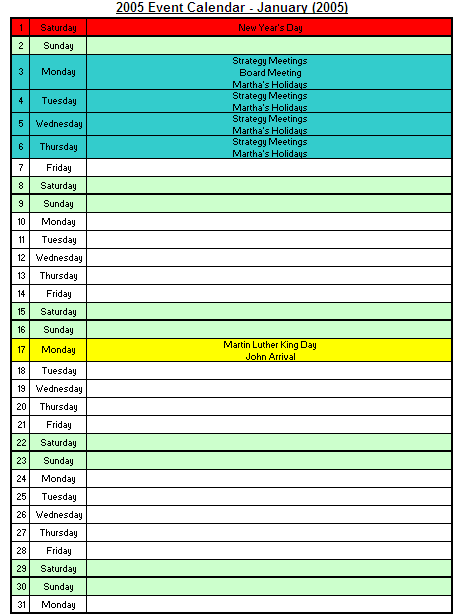
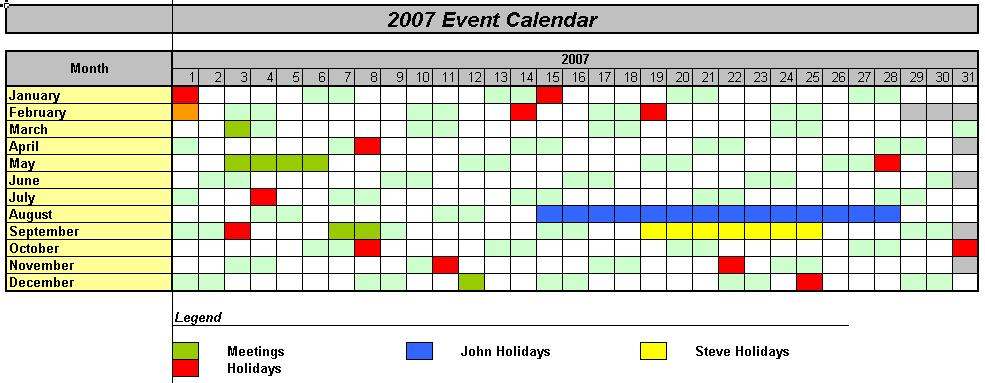
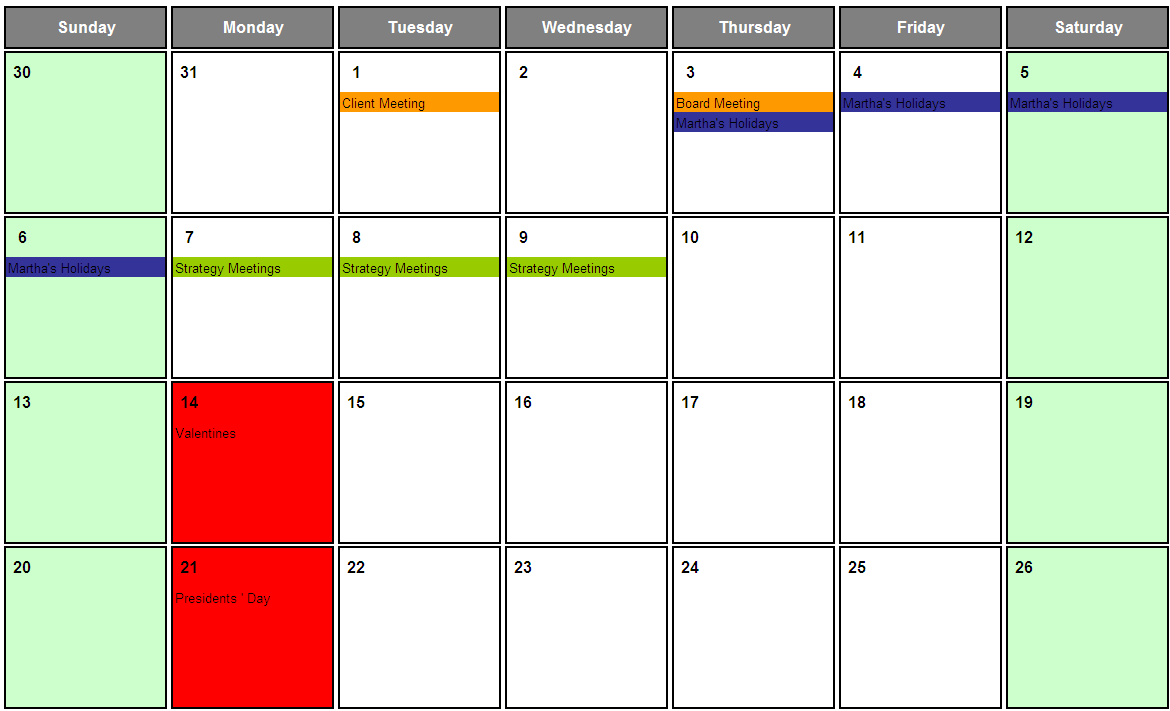
resulting Calendar (PICs. 2 to 7). This new workbook HAS NO MACROS on it,
just the resulting calendar. Change, save, print and email it as any
other regular Microsoft Excel file.
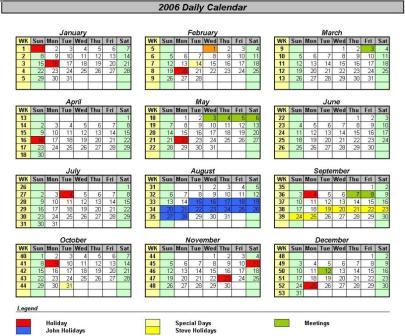
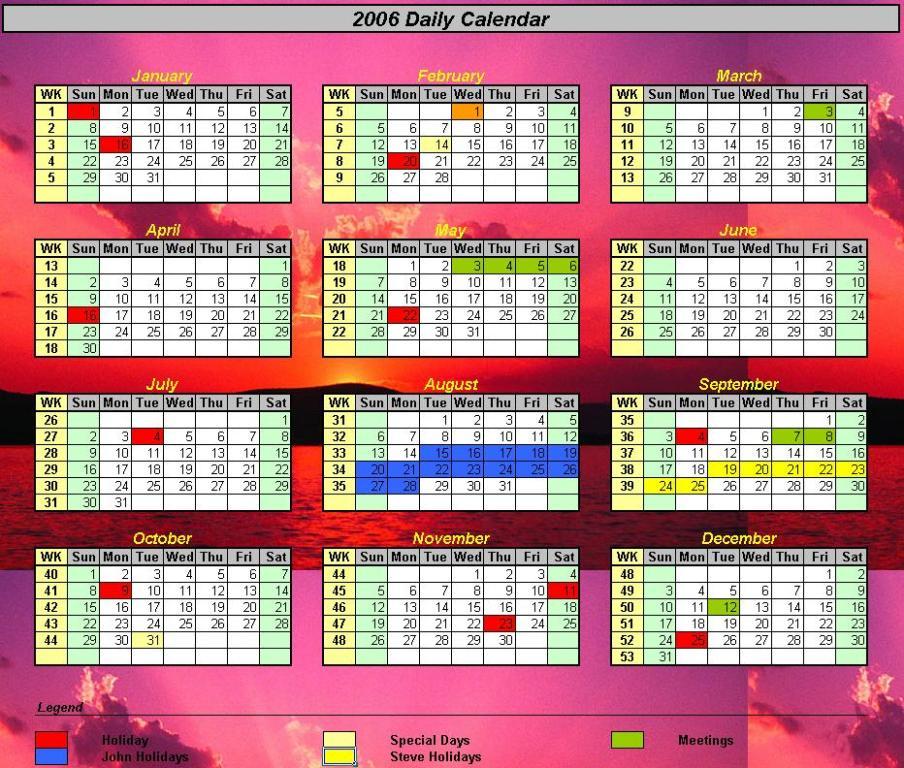
PIC. 2 - Traditional Annual Calendar
(Click to Enlarge)
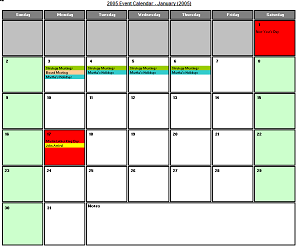
PIC. 3 - Traditional Monthly Format (Click
to Enlarge)
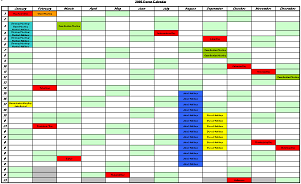
PIC. 4 - Table Annual Format (Click to
Enlarge)
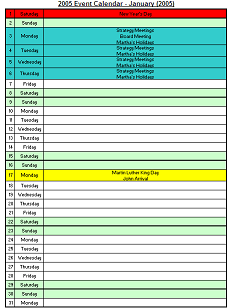
PIC. 5 - List Monthly Format (Click to
Enlarge)
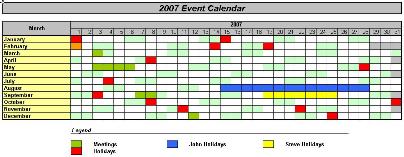
PIC. 6 - Planning Calendar (Click to Enlarge)
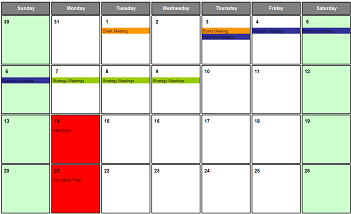
PIC. 7 - 4-5-4 Monthly Fiscal Calendar (Click to Enlarge)
Easy to use. if you know Excel, you know this!
Really easy to use, just fill in the values in the Input
Cells and press the "Run" button to create YOUR new
Calendar. The Microsoft Excel macro will generate a new workbook with the
resulting Calendars (PICs. 2 to 7). This new workbook HAS NO MACROS on it,
just the resulting calendar. Change, save, print and email it as any
other regular Microsoft Excel file.
4-5-4 Fiscal Calendar format supported.
Automatic
Holidays generator for ANY YEAR
Automatically add holidays to the event list for ANY YEAR
(USA holidays only for the current edition). Just select the Holiday
List to Insert and press the "Insert Holidays" button.
Event color and category can be defined on the Advanced
Settings sheet.
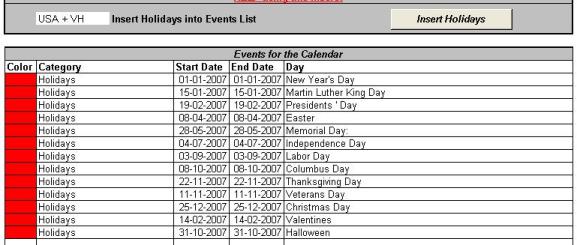
PIC. 8 - Insert Holidays interface &
Resulting events for 2007
New Features - Just Released!
|
- New Calendar Format: Monthly
4-5-4 Fiscal Format.
- Total of SIX types of Calendar: 3 Annual formats (Traditional,
Table and Planning) and 3 Monthly Formats
(Monthly, Monthly 4-5-4 and List), from the same event
list.
|
- HEADER & FOOTER Printing: Calendars can
have custom Headers & Footers when printing.
- OPTIONAL inclusion of Week Numbers in Annual
Formats.
|
|
|
Download FREE Demo |
|
EXCEL ONLY - No
installation or setup required. Just open in Excel and run!
|
Get THIS and ALL other Excel CALENDARS in a SINGLE download! Click HERE!
TWO Looks - with or without
background image - even in print!
Choose your style:
- On the Screen for email, shared drives,
store on your own hard disk.
- On Paper for wall calendars and collective
checking.
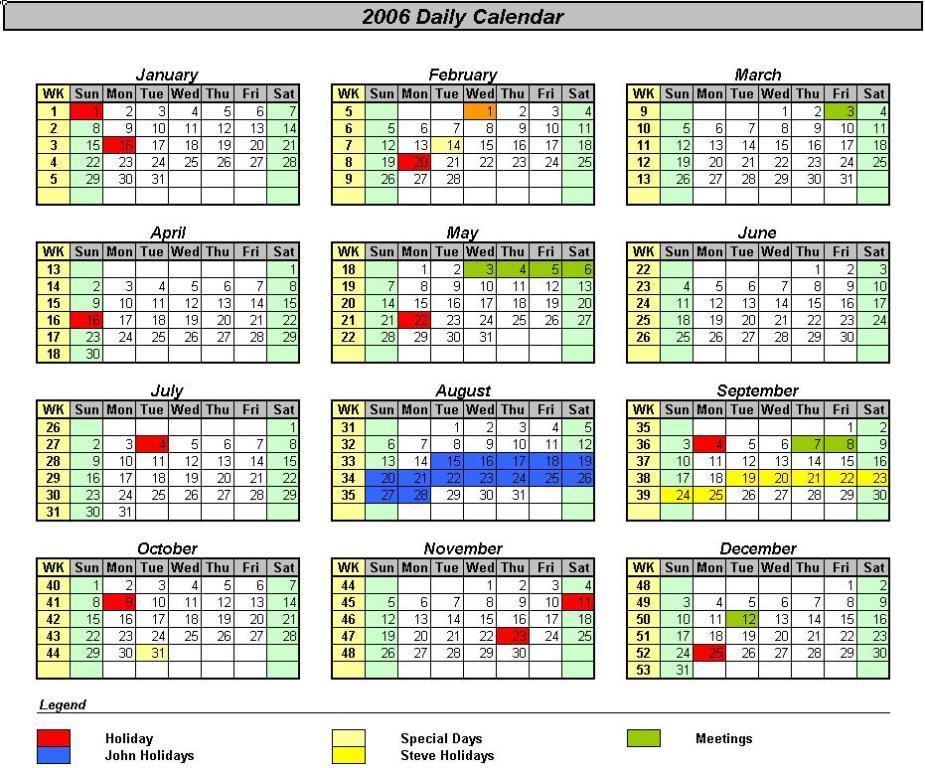
Check the aspect on two calendar formats (Click to Enlarge):
PIC. 9 - Calendar versions - with
and without background
Three options for Event Legend
Automatically add a legend by just opting by the desired style:
Categories, Days or None
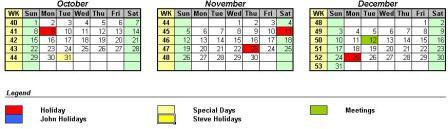
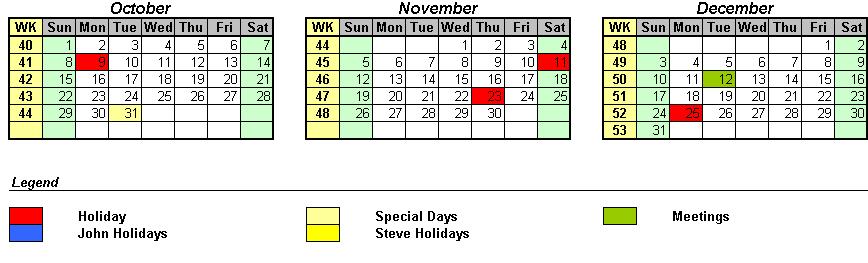
PIC. 10- Categories: Only
lists individual categories. Each category will have a single entry
regardless of the number of events on it. (Click to Enlarge)
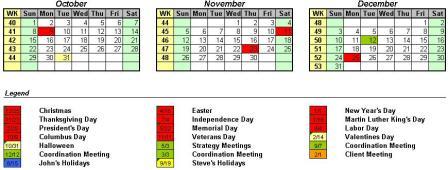
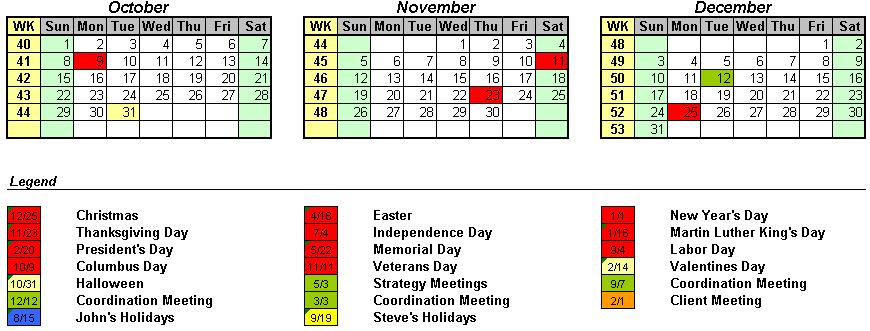
PIC. 11- Days: Lists each
individual event on the input list (Click to Enlarge)
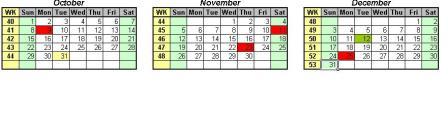
PIC. 12 - None: add no legend.
(Click to Enlarge)
OUTLOOK
INTEGRATION
Most Excel users are also Microsoft Outlook users
and already have events like Meetings, Holidays and other
tasks on Outlook So why write them again?
Import Tasks or Calendar Events from Microsoft
Outlook
Importing from Outlook is as easy as defining the
desired source (Outlook Calendar or Task list) and Start and
End Dates for the
imported tasks. Press the Import from Outlook button and
select the first row for the imported tasks (no overwriting of
manually entered tasks). Relax and see your tasks being
automatically added for you!
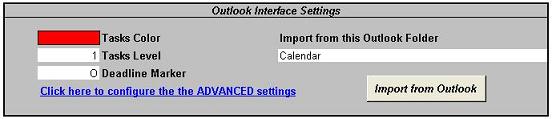
PIC. 13 - Import from Outlook interface
You may import your main or sub Calendars or Task list and even
SHARED CALENDARS just by entering its name!
You can define Advanced settings for special cases on the
macro CONFIG sheet.

PIC. 14 - Import from Outlook Advanced Options
It can also be used to print Outlook Calendars or Task lists
- Just import them, apply custom formats, create the calendar with
the desired format and
print it.
New Features - Just Released!
|
- New Calendar Format: Monthly
4-5-4 Fiscal Format.
- Total of SIX types of Calendar: 3 Annual formats (Traditional,
Table and Planning) and 3 Monthly Formats
(Monthly, Monthly 4-5-4 and List), from the same event
list.
|
- HEADER & FOOTER Printing: Calendars can
have custom Headers & Footers when printing.
- OPTIONAL inclusion of Week Numbers in Annual
Formats.
|
|
|
Download FREE Demo |
|
EXCEL ONLY - No
installation or setup required. Just open in Excel and run!
|
Get THIS and ALL other Excel CALENDARS in a SINGLE download! Click HERE!
Highly Configurable
The Traditional Calendars for Excel macro
allows you to easily configure and personalize several look and
content items:
- Month Names;
- Weekday names;
- Background colors like Holidays, Weekends and Events;
- Font formats - just format a cell as a sample and YOUR font
will be used;
- Gridlines ON or OFF;
- Weekend Colors;
- Automatic Holiday Colors;
- Outlook Events Colors;
- Date Formats;
- Start of Week Weekday – Monday or Sunday;
Is Help available?
Yes. There are three sheets on the Microsoft Excel Workbook
(PIC. 15).
The first one is the Input sheet, the second is the Help one. There
is also an Online
Help Page for this product (see bottom of page for all related
links).
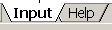
PIC. 15 - Input and Help Sheets
Can the resulting Calendar be customized?
Yes, before and after generation. Before generation,
use the personalization options on the Traditional Calendars
for Excel Input sheet to create the look YOU intend on the resulting calendar.
After generation, the file can be manually changed as any
other regular Microsoft Excel file. There are no special features to the
Calendar file, it is a regular Excel file with painted cells.
Can I save the resulting Calendar? Can I have several copies?
It's a regular Microsoft Excel file. There are NO MACROS on the
resulting plan, only on the generator file. It can be freely copied and manipulated.
Tired of using color pens to mark events on
the office or home calendar? Spending full days manually making calendars?
Spending hundreds on specialized software you don't know how to use?
This easy to use Microsoft Excel macro will generate pretty
traditional calendars in minutes. No need to learn new software skills.
Get your Traditional Calendars for Excel now by using one of the BUY NOW buttons on this page.
What do I get after purchase?
After payment at PayPal,
you will get to a confirmation page with a link to download a ZIP
file containing the Microsoft Excel file (XLCalendars40.xls). Click on this link and
save the file to your own hard drive. You will need to unzip it
(extract the Microsoft Excel files from the compressed ZIP file).
Microsoft Windows XP will let you do it directly, presenting the file as
folder. On older versions of Microsoft Windows, you will need an extra
application like the popular
WinZip. Once
extracted from the ZIP file, just open them with Microsoft Excel every
time you want to use it. DEMO versions of some of our other products
may also included, for evaluation purposes.
Try our FREE DEMO
Download and try our FREE DEMO. It works exactly as they Full
Version except for these restrictions:
- Demo only works for years 2004 and 2005
Download your FREE
DEMO here!
Don't wait any more! Creating beautiful
full year daily calendars is easy. Get your copy
here!
Other Needs? Try the Universal Planning Calendar Excel Macro!
|
Calendar Plan Generator Vs4.00 |
Generate ADVANCED Project style planning calendar, just by
entering the tasks and associated data like it's name and
the starting and end date.
- 4 Calendar Styles: Daily, Weekly, Monthly and Yearly
- Fully CUSTOMIZABLE look
- Use different colors for each task
- Create task groups - Indent each task by its level
or sub-level
- Automatic split of long calendars for better
printing
- Change, save, print or email the resulting calendar
as any other regular Microsoft Excel file
- Outlook integration - Import Task or Calendar
details from Outlook
- Includes ADVANCED features like detail filtering,
optional fields, extra information of the task bars
Click here for details. |
|